We are pleased to invite parents/carers to our upcoming Parent/Carer Evenings. These events provide an opportunity to meet with your young person’s subject teachers, discuss their academic progress, celebrate their achievements and explore how we can work together to support their continued success at WQE College.
All appointments will take place online via SchoolCloud, allowing you to speak directly with teachers through a video call from the comfort of your home.
We will be holding two virtual events:
- Thursday 19 November 2026: 5.00pm – 8.00pm
- Tuesday 24 November 2026: 3.30pm – 6.30pm
You can book appointments with your young person’s subject teachers on either date, subject to availability. Appointments are limited to 7 minutes with each teacher and will disconnect automatically after this time.
Who Are These Events For?
These Parent/Carer Evenings are for parents, carers and supportive contacts of students currently studying:
- Level 1 / Entry programmes
- Level 2 programmes
- Level 3 Year 2 programmes
Please note: Parents and carers of students studying Level 3 Year 1 programmes will be invited to a separate Parent/Carer Evening in February 2027.
Booking Your Appointments
Appointments can be booked online through our SchoolCloud booking system.
The booking system will be open from:
- Opens: Friday 13 November 2026 at 3.00pm
- Closes: Wednesday 18 November 2026 at 12.00 noon
We encourage you to book your appointments as early as possible to secure your preferred times.
Access SchoolCloud here: https://wqe.schoolcloud.co.uk/
Important Information About Logging In
To access SchoolCloud and book your appointments, you must use the parent/carer details held on the College’s records.
Please ensure that the name and email address you enter matches the name and email address we have registered for primary contact 1 on our system. If your details do not match our records, you may be unable to log in or make bookings.
We recommend logging in a few minutes before your first appointment to ensure you are ready to join your meetings.
Guidance to log-in
To help you book and attend your appointments, we have provided a step-by-step guide below. The guide explains below how to log in to SchoolCloud, select your young person’s teachers, book suitable appointment times and access your video meetings on the evening.
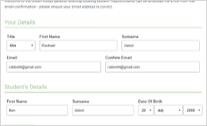
Step 1: Login
Fill out the details on the page then click the Log In button. A confirmation of your appointments will be sent to the email address you provide.
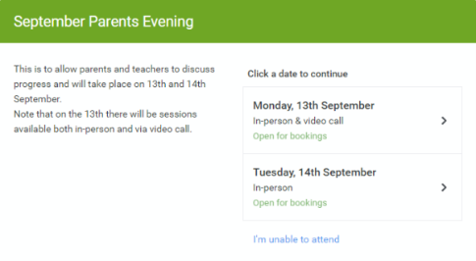
Step 2: Select Parents’ Evening
Click on the date you wish to book. Unable to make all of the dates listed? Click I’m unable to attend.
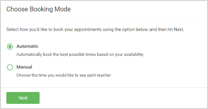
Step 3: Select Booking Mode
Choose Automatic if you’d like the system to suggest the shortest possible appointment schedule based on the times you’re available to attend. To pick the times to book with each teacher, choose Manual. Then press Next.
We recommend choosing the automatic booking mode when browsing on a mobile device.
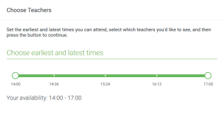
Step 4: Select Availability
Drag the sliders at the top of the screen to indicate the earliest and latest you can attend.
Step 5: Choose Teachers
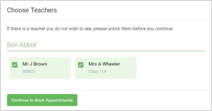
Select the teachers you’d like to book appointments with. A green tick indicates they’re selected. To de-select, click on their name.
Step 6: Book Appointments (Automatic)
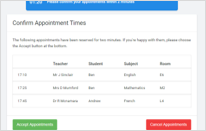
If you chose the automatic booking mode, you’ll see provisional appointments which are held for 2 minutes. To keep them, choose Accept at the bottom left.
If it wasn’t possible to book every selected teacher during the times you are able to attend, you can either adjust the teachers you wish to meet with and try again, or switch to manual booking mode.
Step 7: Book Appointments
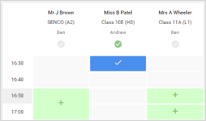
Click any of the green cells to make an appointment. Blue cells signify where you already have an appointment. Grey cells are unavailable.
To change an appointment, delete the original by hovering over the blue box and clicking Delete. Then choose an alternate time.
Once you’re finished booking all appointments, at the top of the page in the alert box, press click here to finish the booking process.
Step 8: Finished
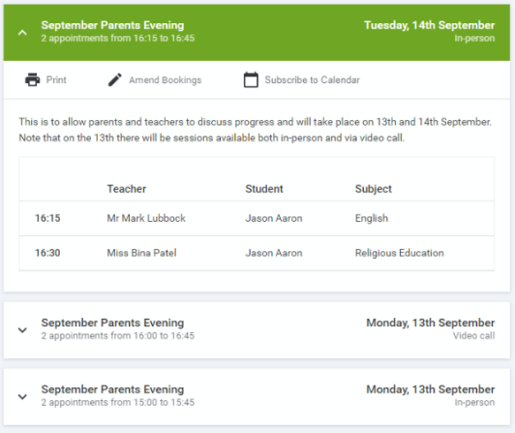
All your bookings now appear on the My Bookings page. An email confirmation has been sent and you can also print appointments by pressing Print. Click Subscribe to Calendar to add these and any future bookings to your calendar.
To change your appointments, click on Amend Bookings.